





The Complete Guide to Microsoft Access Migration for Modern Platforms (2026)
If you’re running Microsoft Access in 2026, you’re almost certainly asking one of two questions:
“Do I actually need to migrate?” or “Okay, I know I should migrate, but where do I even start?”
Both are fair. Access has served businesses reliably for over three decades, and walking away from something that still technically works takes real conviction. But late 2025 changed everything, and 2026 is shaping up to be the year many organizations reach a decision point they can no longer delay.
This guide covers everything about what Microsoft Access migration actually means, who genuinely needs it, the practical paths forward, the tools involved, what it costs, what can go wrong, and how to choose the right destination for your specific situation.
Why Migrate Microsoft Access Databases in 2026
Microsoft Access migration is the process of moving your database objects, tables, relationships, queries, forms, reports, and VBA logic from an Access file (.accdb or .mdb) to a different platform. Depending on how deep your Access setup goes, this can mean:
- Moving just the data tables to a more capable database engine like SQL Server or Azure SQL, while keeping Access forms as the front end.
- Rebuilding the entire application on a modern platform like Power Apps, a web framework, or a custom .NET solution.
- A hybrid path where some components stay in Access temporarily while the back end is modernized first.
A successful Microsoft Access migration strategy still works for very small, single-user setups. Once you add more users, larger data volumes, or the need for remote access, its limits become obvious.
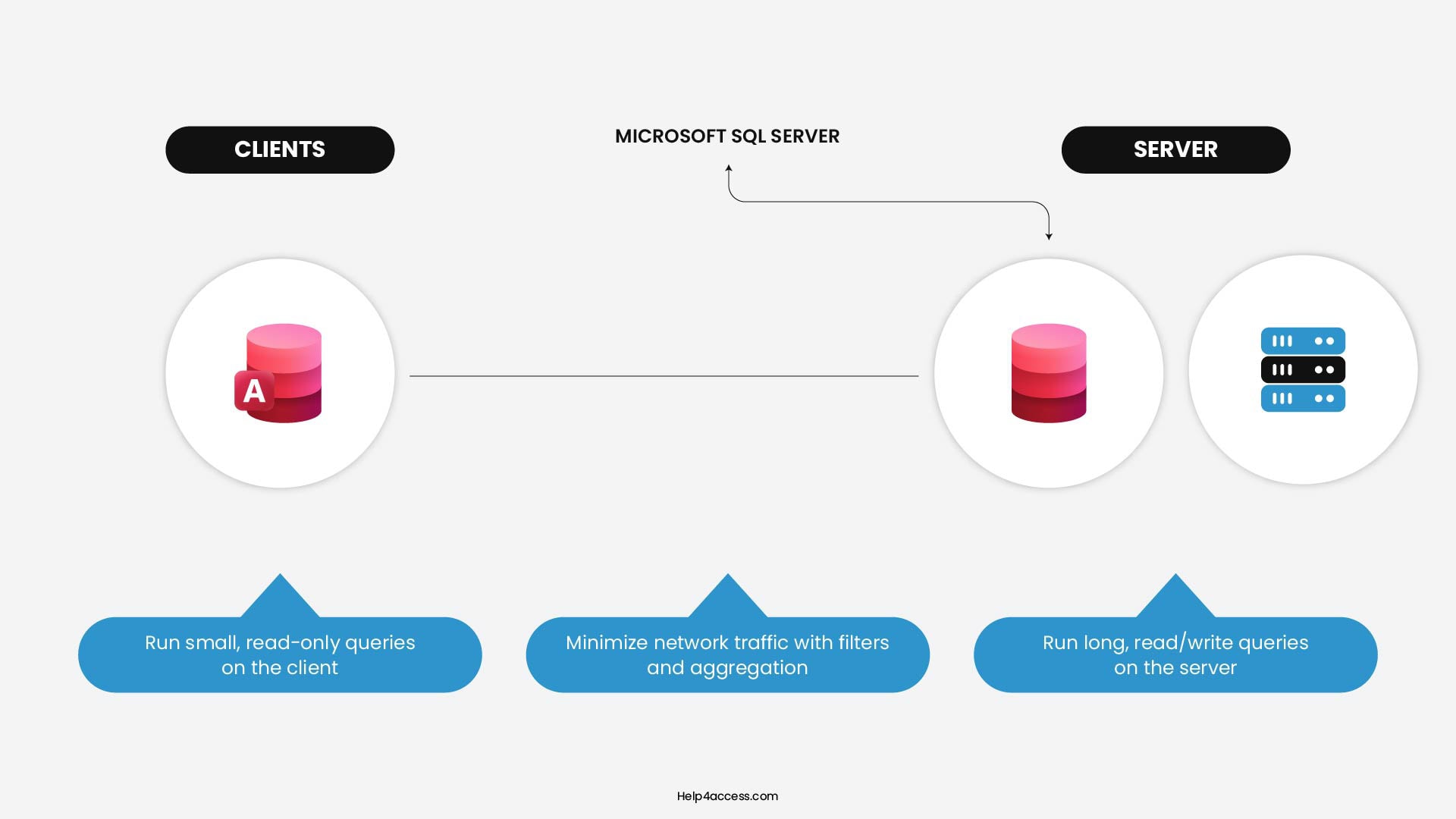
Access Limitations
Microsoft Access caps at about 2 GB per database, with performance degrading and corruption risks rising well before that limit; it reliably supports only 10-20 concurrent users before issues like slowdowns emerge. Backups demand all users log out, and security depends on shared files that lack robust encryption or auditing.
Support Status
Perpetual versions like Access 2021 and Office LTSC 2021 reach end of support on October 13, 2026 (no more security patches or fixes afterward) while Microsoft 365 versions continue updates, though the core file-based architecture persists unchanged. Access LTSC 2024 extends support to 2029, but many legacy setups still run vulnerable older editions. This is why Microsoft Access migration is now a business priority rather than a technical option.
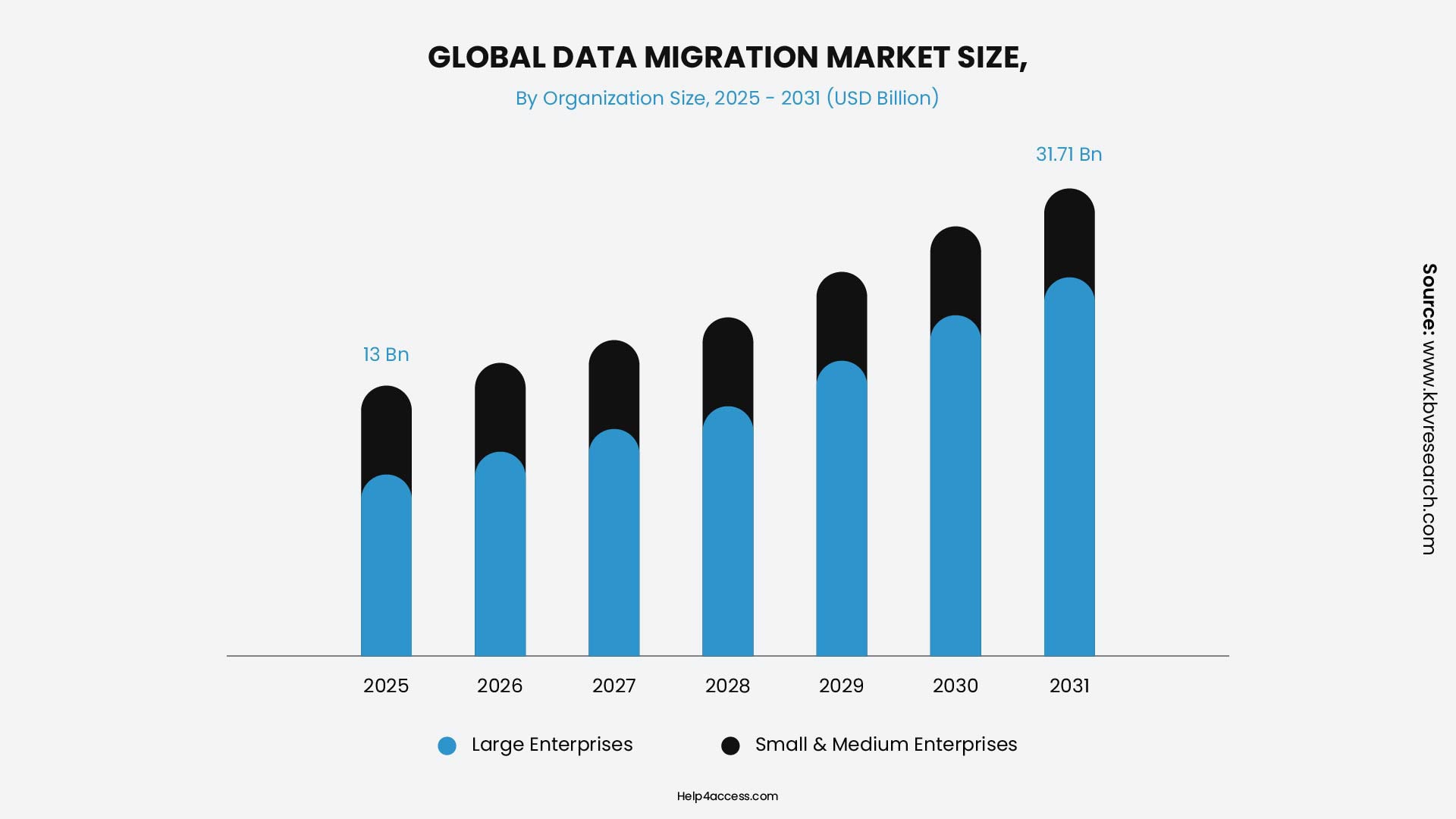
The data migration market itself is expanding quickly, valued at approximately $13 billion in 2025 and projected to reach $31.71 billion by 2031 (12.0% CAGR), because companies want scalable, secure, cloud-ready systems instead of desktop files.
Common reasons teams migrate now include:
- Better performance and unlimited scaling.
- Secure remote access from any device.
- Easier integration with Power BI, Teams, and automation tools.
- Reduced maintenance and fewer single points of failure.
- Compliance and backup needs that Access cannot meet easily.
Staying put might feel simpler short-term, but the hidden costs of downtime, data loss risk, and lost productivity add up fast. A well-planned Microsoft Access migration addresses all of these issues.
Your Main Microsoft Access Migration Options in 2026
Before selecting any migration tools or writing a single line of conversion code, you must decide on your target platform. The right choice depends on your current Access application’s complexity, your organization’s cloud maturity, security requirements, and long-term scalability needs.
Below are the three primary Microsoft Access migration paths available in 2026. Each option includes a technical breakdown, architectural implications, typical use cases, and realistic timelines.
| Option | Disruption Level | Keeps Access Forms | Scalability | Best For | Typical Timeline |
|---|---|---|---|---|---|
| SQL Server / Azure SQL | Low | Yes | High | Most businesses keeping existing UI | 1–6 weeks |
| Dataverse + Power Platform | Medium | Partial | Very High | Teams wanting cloud apps & automation | 2–8 weeks |
| Full rebuild / other platform | High | No | Highest | Organizations replacing everything | 1–6 months |
1. Migrate the Back End to SQL Server or Azure SQL
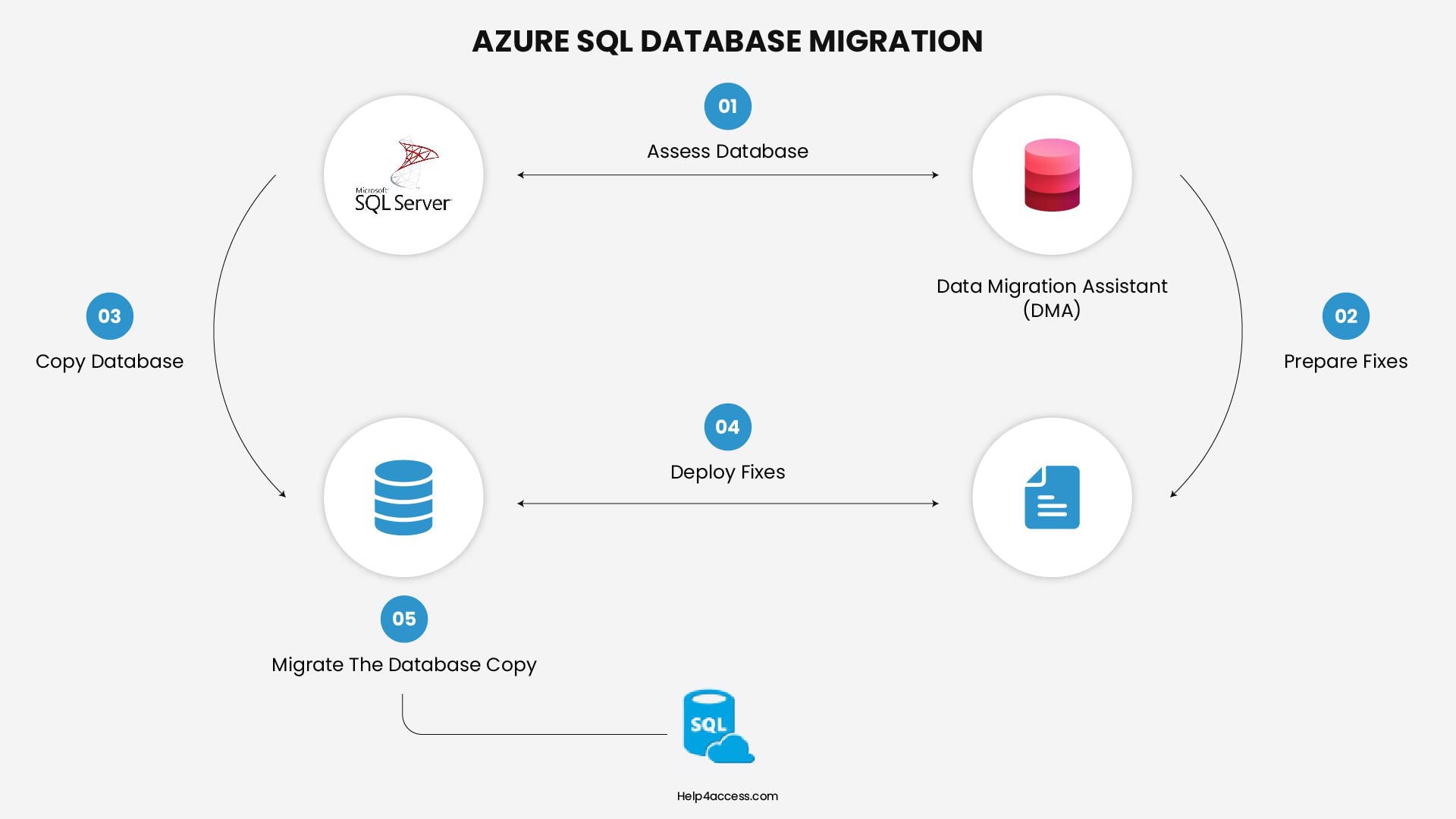
Keep your existing Access front-end objects (forms, reports, macros, VBA modules) unchanged while moving only the tables to SQL Server (on-premises) or Azure SQL Database. Access connects to the remote tables through ODBC linked tables, with queries, forms, and reports needing only minor adjustments like pass-through queries for large datasets. This Microsoft Access migration path is the least disruptive for teams that want to keep their existing user interface.
Technical considerations:
- Linking method: Use the current Microsoft ODBC Driver for SQL Server.
- Data types: Access AutoNumber becomes SQL IDENTITY columns; Yes/No fields map to BIT; consider handling large objects (OLE Object) as VARBINARY(MAX) or external storage like Azure Blob.
- Performance tuning: Replace Access temp tables and row-by-row VBA loops with SQL stored procedures or set-based operations.
- Security: Leverage SQL Server or Azure AD authentication, row-level security where needed, and encryption options.
- High availability: Azure SQL includes auto-failover and geo-replication; on-premises options use Always On or clustering.
Why choose this path:
- You have a stable Access application with complex forms and reports too costly to rebuild.
- Your team knows VBA and Access design but not web development.
- Minimal downtime during migration keeps business running.
Limitations:
- Access remains a desktop app with no native mobile or browser access.
- You must still distribute Access runtime (local installs, Citrix, or RemoteApp).
- Large datasets may slow forms without server-side filtering or pagination.
Typical timeline: 1–6 weeks, based on database size and VBA adjustments needed.
2. Migrate to Dataverse + Power Platform
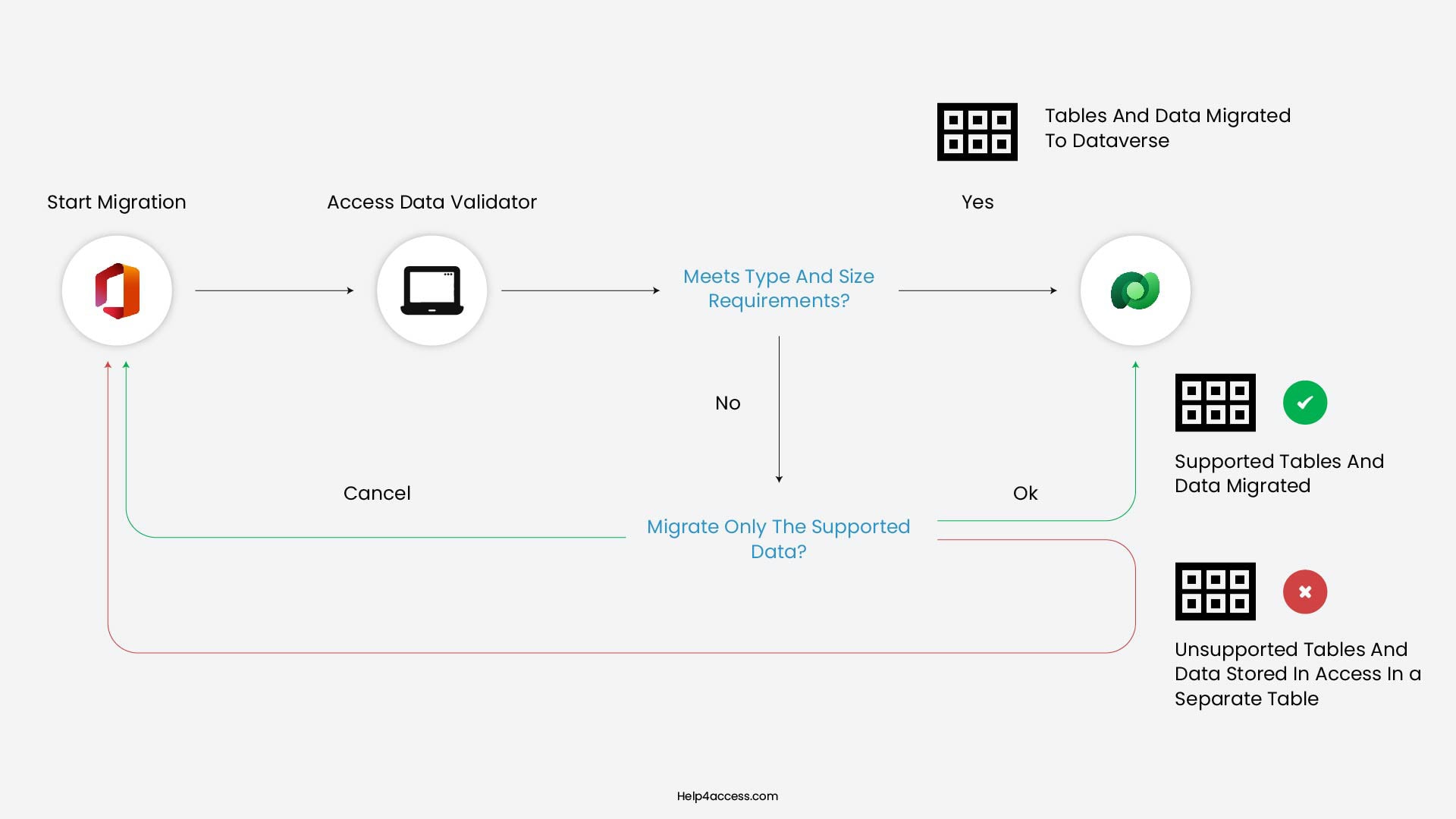
You move your data and much of your business logic into Microsoft Dataverse, a cloud database used by Power Apps, Power Automate, and Dynamics 365. Access tables can be migrated into Dataverse tables, while Access queries are typically reworked into Power Fx formulas, Dataverse views, Power Automate flows, or app logic depending on complexity. This Microsoft Access migration approach is ideal for organizations already invested in Microsoft 365.
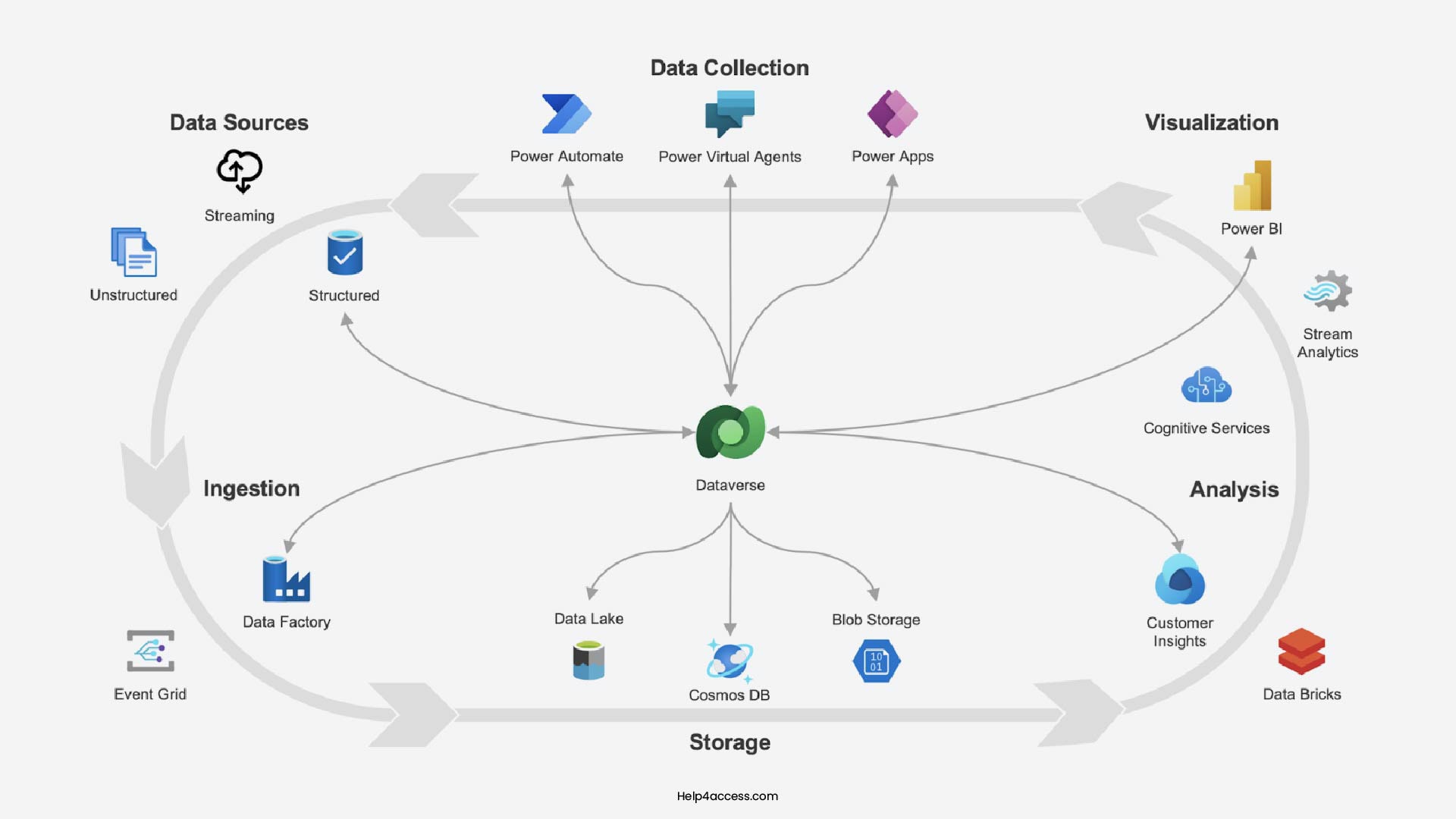
You may keep an Access front end temporarily in some cases, but most organizations rebuild the user interface in a canvas app or model-driven app. This path is best when you want browser access, mobile support, workflow automation, and a more cloud-native architecture.
Technical considerations:
- Data migration: Use Microsoft’s migration guidance and available import tools, or move tables through CSV/Excel-based staging where appropriate.
- Relationship handling: Dataverse supports one-to-many and many-to-many relationships natively, with platform-level referential integrity.
- Logic migration: Access VBA and event logic usually need to be reimplemented using Power Fx, Power Automate, Dataverse business rules, or custom components.
- Security: Dataverse supports Azure AD integration, field-level security, and role-based access without managing database connection strings.
Why choose this path:
- You want a cloud-first solution with browser and mobile access.
- You need automation, approvals, and integration with Microsoft 365 and other connectors.
- Your Access app is relatively moderate in size and logic complexity.
Limitations:
- Power Apps is not a direct VBA replacement, so some logic must be redesigned.
- Complex Access reports may need to move to Power BI or another reporting layer.
- The user experience often needs to be rebuilt rather than lifted and shifted.
Typical timeline: 2–8 weeks, depending on data volume, forms complexity, and how much logic must be rebuilt.
3. Full Rebuild or Third-Party Alternative
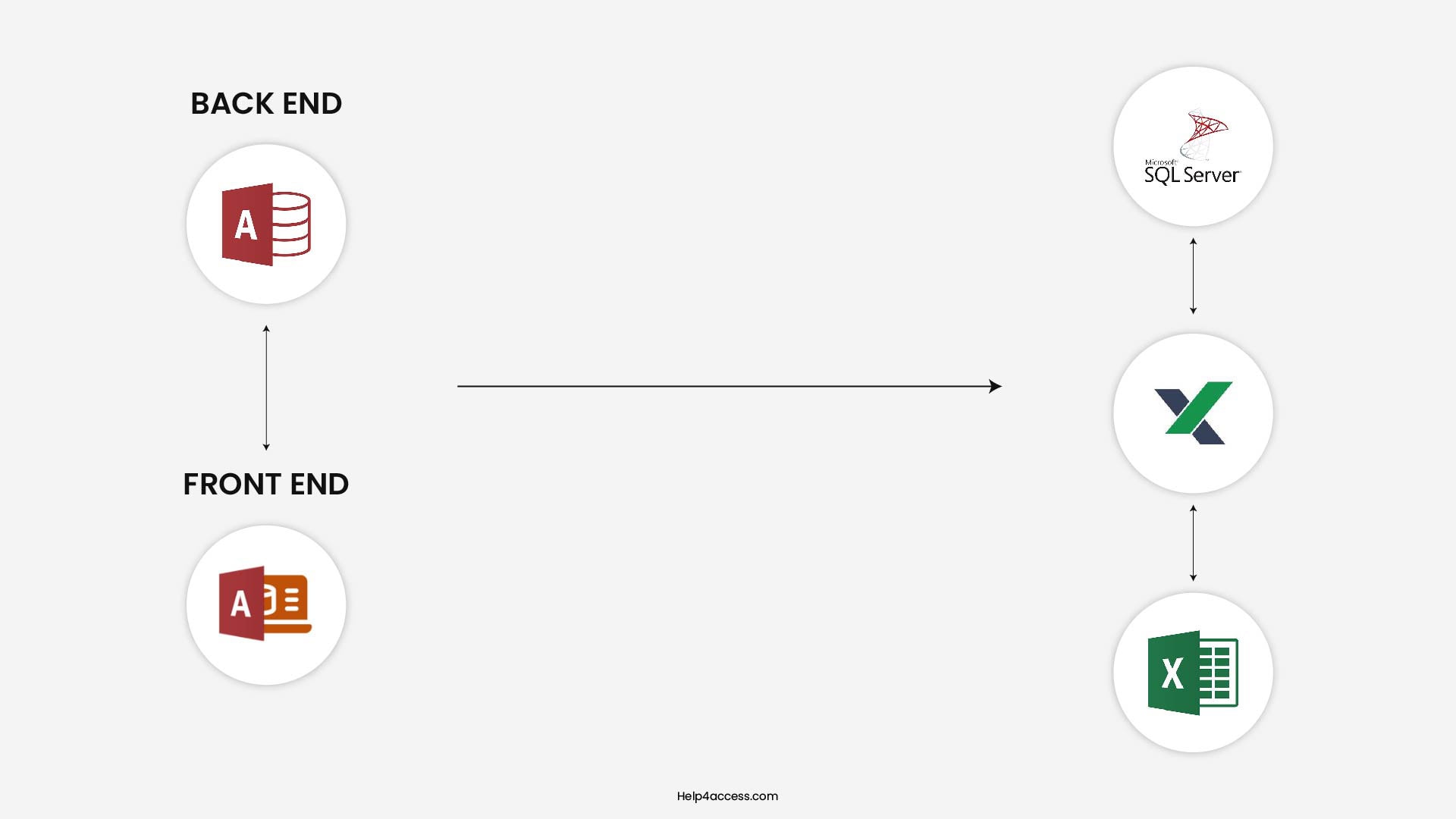
You completely replace the Access application and build a new one on another platform. Common options include low-code platforms such as OutSystems, Mendix, Retool, or Budibase; web frameworks such as Blazor or React + Node.js; and commercial SaaS products if the Access app is really solving a standard business problem. This Microsoft Access migration option offers the most long-term flexibility but requires the highest upfront investment.
Technical considerations:
- Data extraction: Export tables to a neutral format such as CSV or JSON, then load them into the new system.
- Business logic rewrite: Every query, VBA function, and macro must be recreated in the new platform.
- UI redesign: Access forms, subforms, and pop-ups usually do not map cleanly to web interfaces.
- Testing: Run the old and new systems in parallel long enough to validate data and workflow parity.
Why choose this path:
- The Access application has become too complex or fragile to maintain.
- You want to standardize on a modern stack your team already supports.
- You need to eliminate desktop dependencies entirely.
Limitations:
- This is usually the most expensive option upfront.
- Hidden business rules inside forms, reports, and VBA can be difficult to uncover.
- It usually takes the longest and carries the most delivery risk.
Typical timeline: 1–6 months, and longer for larger or more regulated systems.
Key Decision Factors for 2026
- If your Access app has fewer than about 50 users and modest data volume, Dataverse can be a fast cloud path.
- If you need stronger on-premises control, stricter compliance, or a more traditional database architecture, SQL Server or Azure SQL is usually the safer route.
- If your VBA codebase is very large and hard to maintain, a full rebuild may cost less over time than preserving a difficult hybrid system.
- If you rely heavily on Access reports, SQL Server plus SSRS or Power BI Report Builder is usually a better fit than Power Apps.
Pro Tip: Microsoft continues to support Access in current release channels, but its broader cloud direction favors Dataverse and the Power Platform. A small pilot Microsoft Access migration is still the best way to validate performance and complexity before committing to a larger move.
Still choosing between SQL Server, Dataverse, or a full rebuild?
👉 Read the step by step Legacy System Modernization Guide to compare your options and pick the one that fits your system and your constraints.
Microsoft Access Migration to SQL Server or Azure SQL (Step-by-Step)
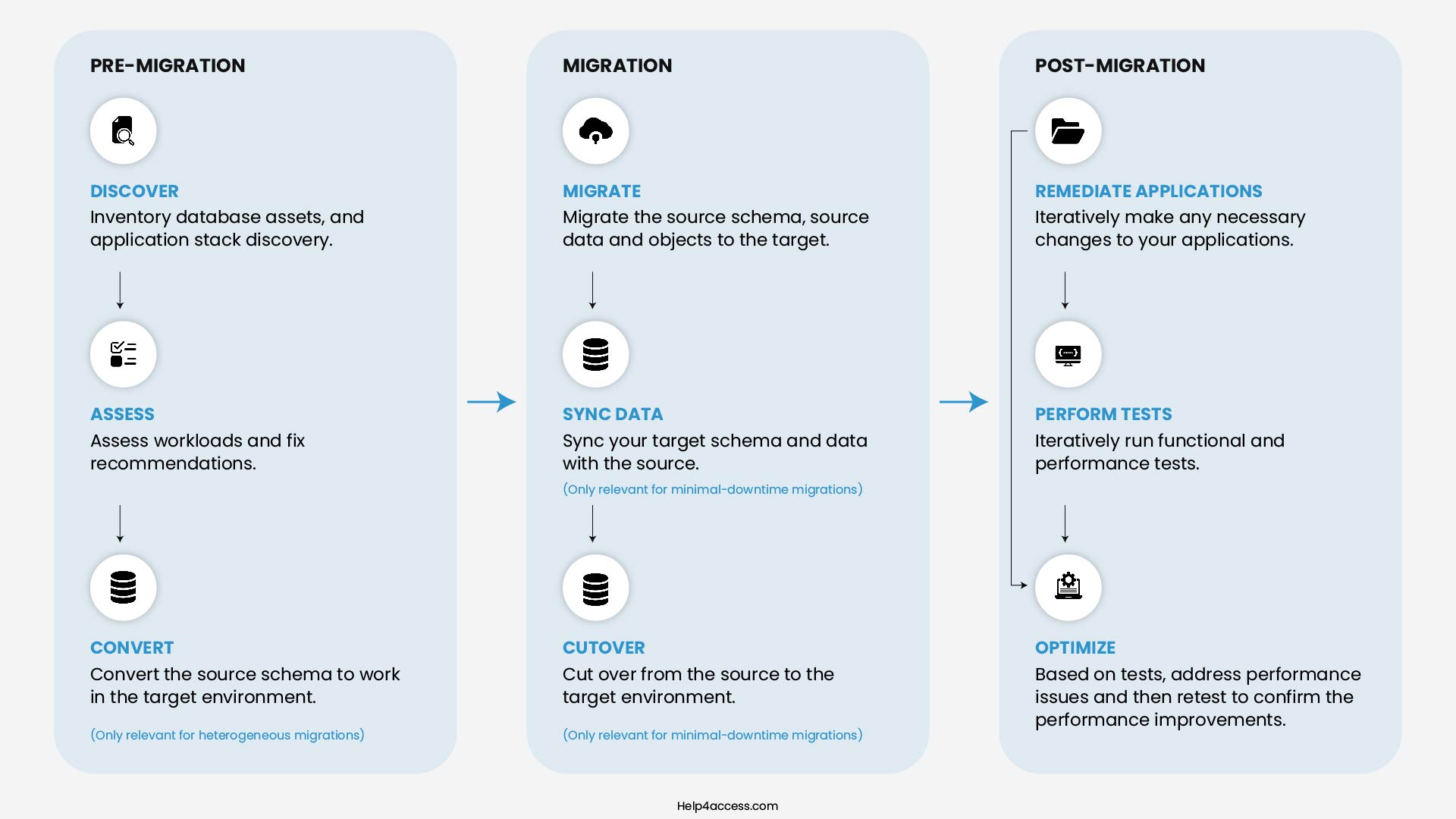
Microsoft’s recommended tool is the SQL Server Migration Assistant (SSMA) for Access. It works for Microsoft Access databases created in Access 97 through 2010; newer .accdb files often migrate the same way after a quick compact-and-repair of Microsoft databases. For a successful Microsoft Access migration to SQL Server or Azure SQL, follow these steps carefully:
Preparation (Do This First)
- Close the database and back it up.
- Remove user-level security if present (.mdb files).
- Add primary keys and indexes to every table.
- Fix any mismatched data types between related tables.
- Delete or handle Attachment columns (SSMA does not migrate them).
- Compact and repair the file.
Run the Migration with SSMA
- Download and install the latest SSMA for Access (choose 32-bit or 64-bit to match your system).
- Open SSMA and create a new project.
- Choose SQL Server (on-premises) or Azure SQL Database as the migration target.
- Click Add Databases and select your .accdb or .mdb file.
- Enter connection details for your SQL Server or Azure SQL instance (server name, authentication, database name).
- Run Convert Schema first to see warnings/errors about data types, relationships, or unsupported objects.
- Convert the schema (tables, queries without parameters, relationships, indexes).
- Click Load to Database to create the converted tables, indexes, and relationships in SQL Server/Azure SQL.
- Select tables and click Migrate Data to transfer all records from Access to SQL Server.
- Open your Access front-end file, go to External Data > Linked Table Manager, select all linked tables, and point them to the new SQL Server ODBC data source.
Post-Migration Tasks
- Test every form, report, and query.
- Convert complex queries to pass-through queries or stored procedures where needed.
- Add a
rowversioncolumn (for SQL Server 2016+) to help with record locking. - Update connection strings on every user’s machine or use a consistent ODBC DSN.
- Run performance tests and move heavy logic to the server side (views, stored procedures).
For Azure SQL specifically, the process is almost identical. You get automatic backups, scaling, and global access. Microsoft’s official Azure migration guide follows the same SSMA steps with a few extra connection details.
End-to-End Microsoft Access Migration to Dataverse: Step-by-Step
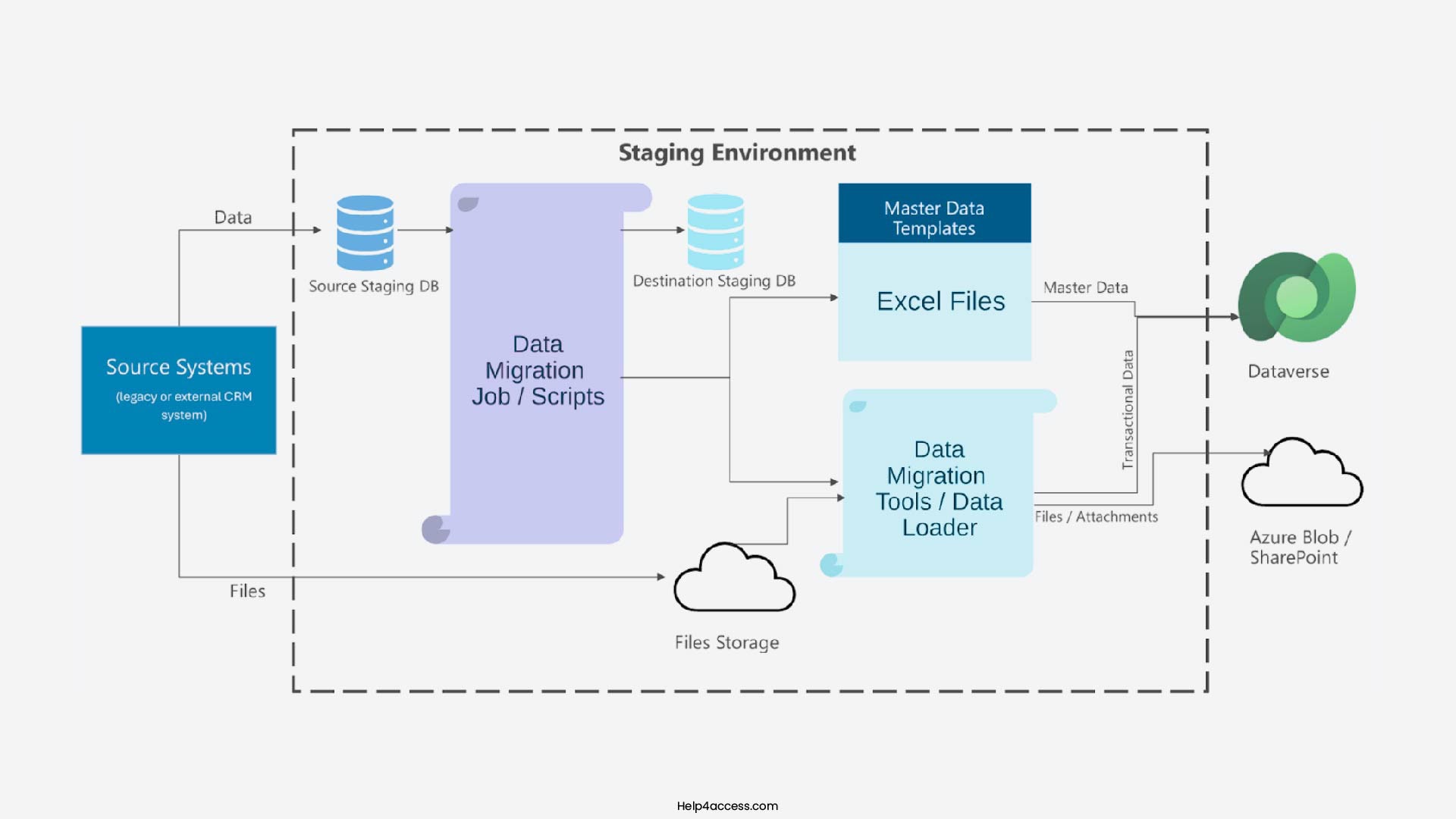
If your organization already uses Microsoft 365, migrating your Access database to Microsoft Dataverse is not only feasible but also built directly into recent versions of Access. Dataverse is the cloud-native database that underpins Power Apps, Power Automate, and Dynamics 365. The Microsoft Access migration to Dataverse is built directly into Access, making it one of the most seamless options for Microsoft shops.
By moving your data to Dataverse, you can keep your existing Access front-end temporarily while gradually building modern, mobile‑ready applications on the Power Platform.
Prerequisites: What You Need Before You Start
- Access version and licensing: You must have a Microsoft 365 subscription that includes the Access desktop application (build 16.0.15128.20248 or newer). Check this under File > Account > About Access.
- Power Platform environment: You need administrator access to create or select a Dataverse environment at make.powerapps.com.
- Database preparation: Close all open tables, forms, and queries. Resolve unsupported data types, and make a full backup copy.
- Account alignment: Sign into Access using the same Microsoft 365 work/school account used for Power Apps.
Step-by-Step Migration Process
- Step 1: Sign In and Open Your Database: Launch Access, sign in, and open the database in a clean, single-user state.
- Step 2: Initiate the Dataverse Export: Go to External Data > Export > Dataverse (or right-click a table and select Export > Dataverse).
- Step 3: Select Your Dataverse Environment: Choose your target environment from the dropdown list.
- Step 4: Configure Export Settings: Check Select related tables automatically and Link tables after export to keep existing forms working.
- Step 5: Run Data Validation: Click Export. Access will test compatibility and generate a “Column Validation Errors” table if fixes are needed.
- Step 6: Execute the Migration: Access creates Dataverse tables, converts schema, uploads rows, and updates linked tables.
- Step 7: Verify the Migration: Test editing data inside Access and verify live updates in make.powerapps.com.
Post-Migration: Build Your New Experience
- Option A: Keep Access as Your Front-End (Temporary): Linked tables keep your existing UI running short-term while you transition.
- Option B: Build a Modern UI with Power Apps (Recommended): Create canvas or model-driven apps in Power Apps and replace VBA with Power Fx formulas.
- Option C: Add Automation with Power Automate: Trigger cloud workflows on Dataverse data events for notifications, approvals, and integrations.
Technical Mapping: How Access Features Translate to Dataverse
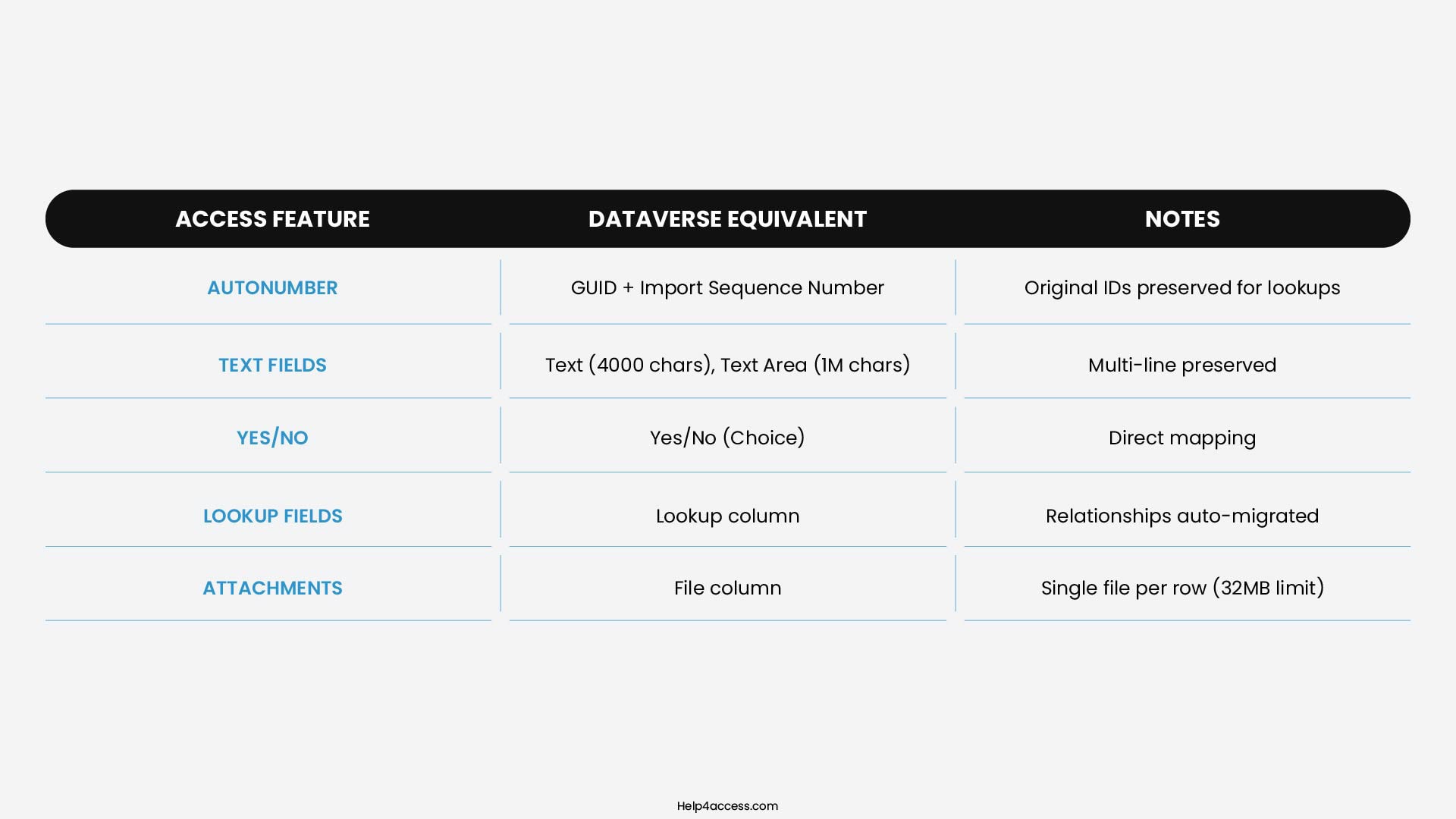
Known Limitations and Workarounds
- Complex VBA logic: Re-implement logic using Power Fx, Power Automate flows, or C# Dataverse plug-ins.
- Parameter queries: Replace with Power Apps input controls bound to data filters.
- Multiple attachments: Store files in Azure Blob Storage or SharePoint, keeping URLs in Dataverse.
- Reporting: Move complex reports to Power BI connected directly to Dataverse.
Microsoft Access Migration: Other Practical Alternatives
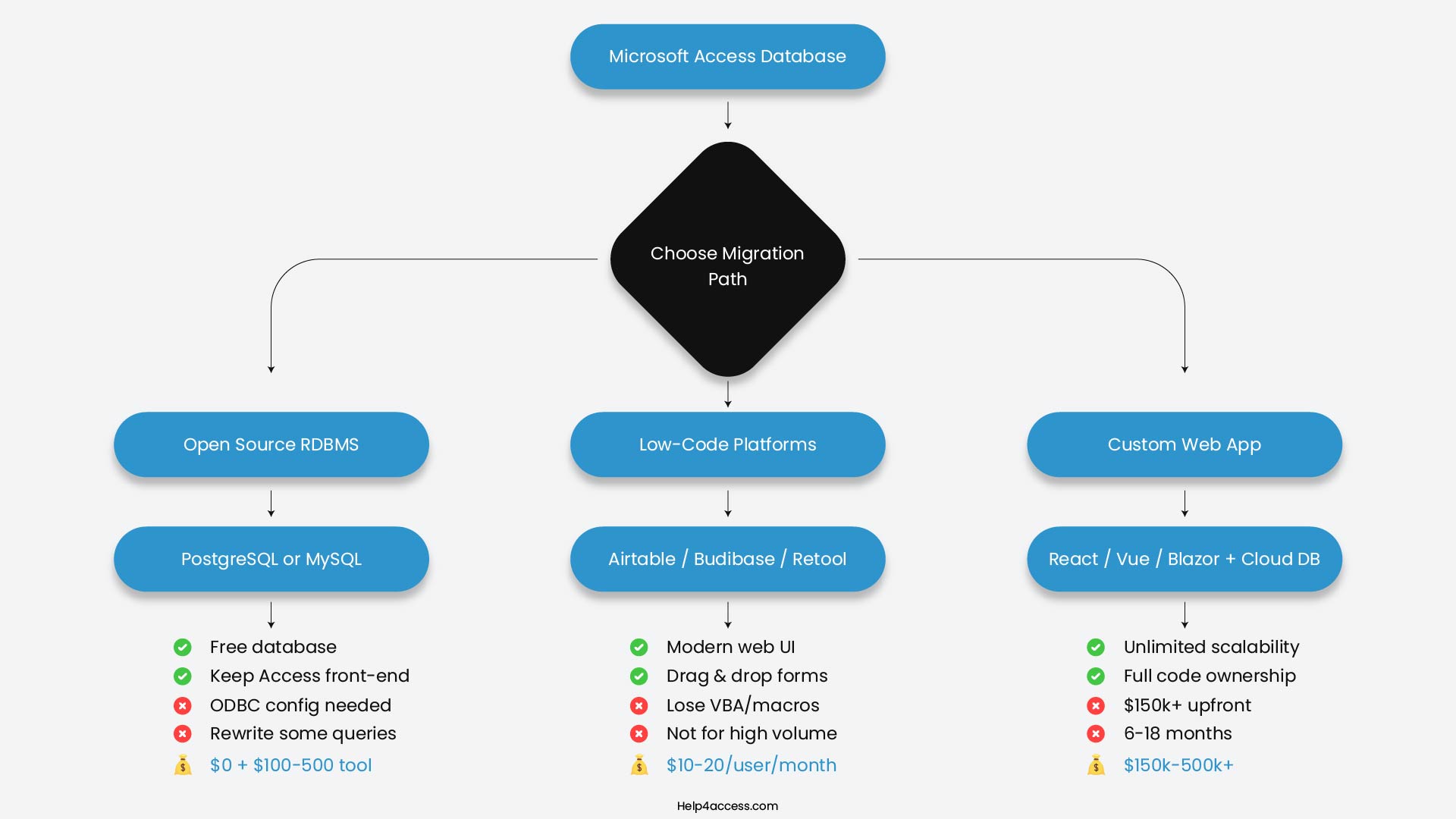
PostgreSQL or MySQL
These open-source relational databases offer zero software licensing fees. Use tools like DBConvert or pgloader to migrate table structures. Connect your Access front end using psqlODBC or MySQL ODBC drivers.
Low-Code Platforms (Airtable, Budibase, Retool)
Ideal for quick web grid and dashboard interfaces ($10–$20/user/month). Complex VBA logic must be rewritten using native platform scripting.
Custom Web Application
Rebuild as a full web app using React, Vue, or Blazor backed by a cloud database. Eliminates desktop dependencies entirely and provides maximum long-term scalability ($150,000+, 6–18 month scope).
Common Microsoft Access Migration Mistakes and How to Avoid Them
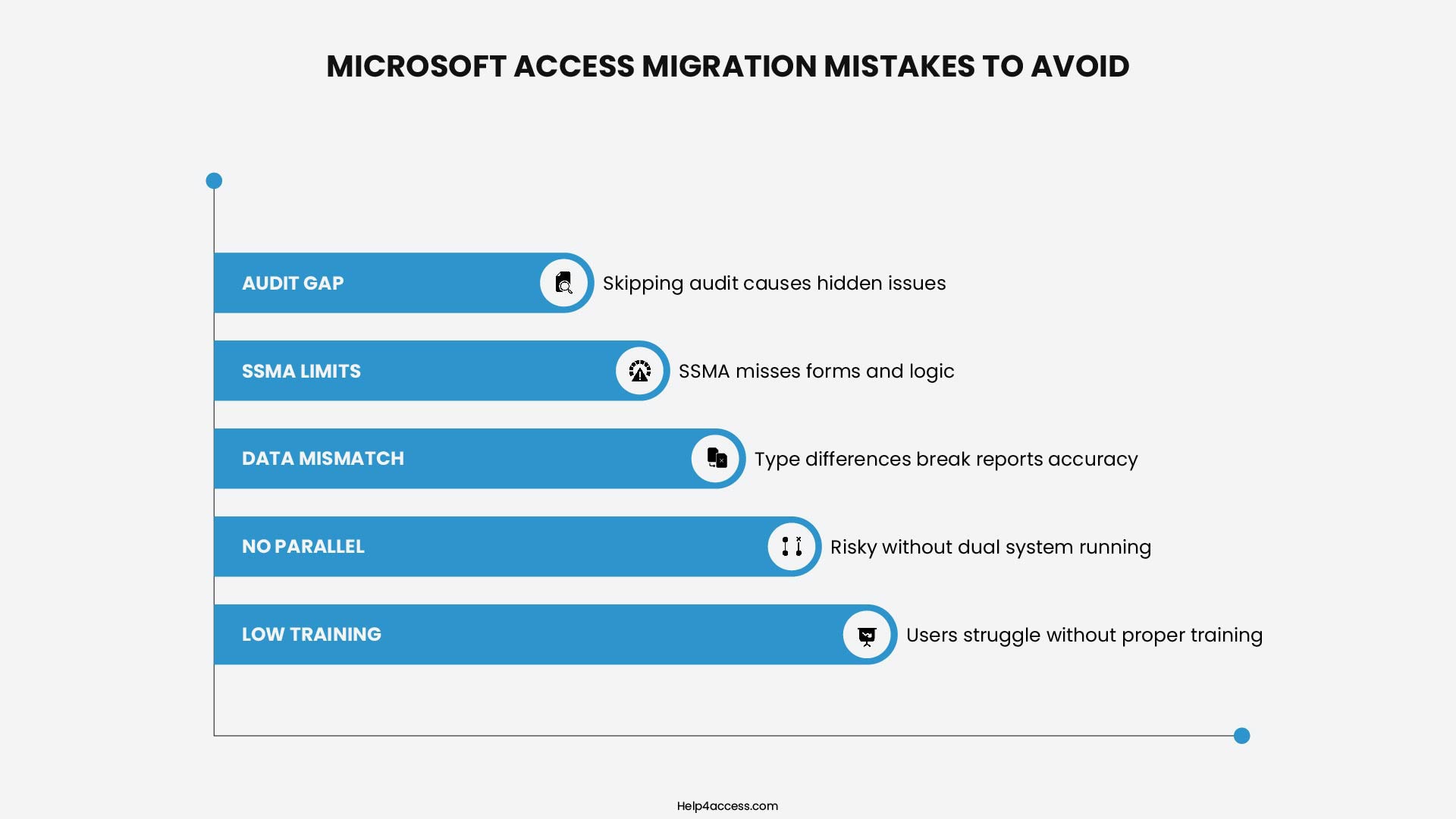
- Migrating Without a Full Audit First: Always log and audit active database objects to prune unused “ghost” forms and tables before starting.
- Assuming SSMA Handles Everything: SSMA only moves schema and data—budget separately for front-end UI and VBA refactoring.
- Ignoring Data Type Mismatches: Watch for precision differences in Currency, Date/Time, and Null handling in unique indexes.
- No Parallel Running Period: Always run old and new databases side-by-side for at least 2 weeks to verify data parity.
- Underestimating Training Requirements: Budget change management time to train users on new web/mobile app interfaces.
What Microsoft Access Migration Actually Costs & How Long Does It Take?
Cost varies depending on complexity, target platform, and resources. A simple Access-to-SQL backend migration averages $5,000–$15,000 (1–2 weeks). Full Power Apps rebuilds average $50,000–$100,000 (2–4 months). Large custom web application rebuilds can reach $150,000+ (6–18 months).
Licensing Overview:
- SQL Server Express: Free (up to 10 GB dataset limit).
- SQL Server Standard: $3,717 per core ($7,434 for 2-core minimum).
- Azure SQL Database: From ~$375/month for General Purpose 2 vCore production workloads.
- Power Apps: $20/user/app/month or $40/user/month (unlimited apps).
- Dataverse Storage: $40/GB/month for additional database capacity.
- Specialist Rates: Expert migration consultants average $150–$300/hour in 2026.
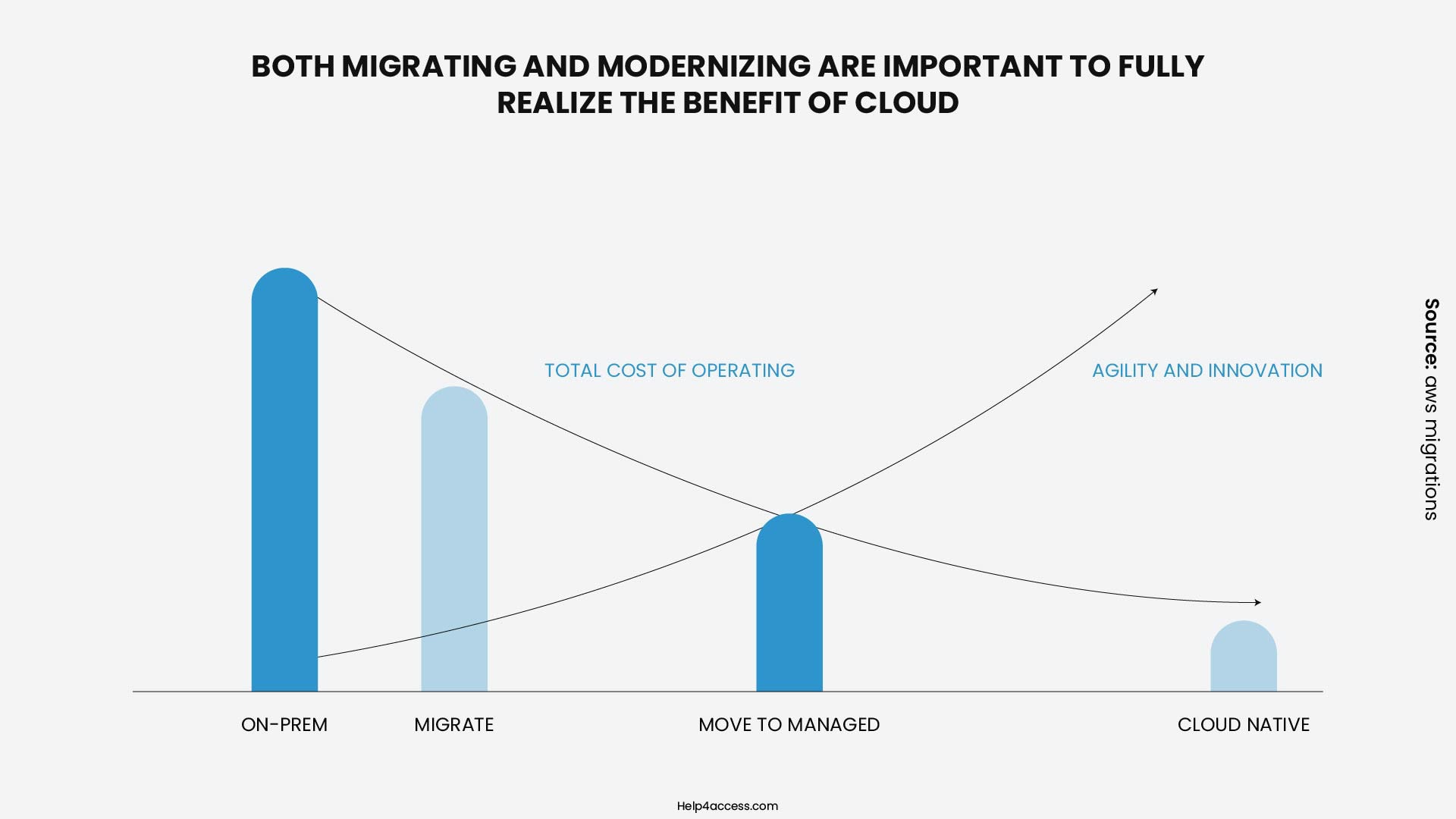
A cloud-native approach during Microsoft Access migration can yield a 20% to 30% reduction in long-term cloud operating costs when moving to optimized serverless or containerized architectures.
Planning Your Microsoft Access Migration?
Migrating from Microsoft Access doesn’t have to be complex or costly. Many organizations can retain existing forms and reports while moving to more secure, scalable platforms like SQL Server, Azure SQL, or Dataverse using Microsoft’s 2026 tools.
If you want help evaluating your specific database, Help4Access can assess your current system, recommend the best migration path, and provide a tailored roadmap with minimal disruption.
As a Microsoft Gold Partner specializing in Access systems, we support everything from discovery through full migration across Azure, SQL Server, Oracle, .NET, and Java. Schedule a call to get started or learn more at Help4Access Services.
Frequently Asked Questions
1. Is Microsoft Access being phased out or discontinued in 2026?
No, Microsoft Access is not being discontinued. Microsoft 365 versions continue to receive updates, and Access LTSC 2024 provides support through 2029. However, perpetual versions like Access 2021 reach end of support on October 13, 2026. Most companies migrate to gain cloud security, mobile support, and multi-user performance.
2. How much does it cost to migrate an Access database to SQL Server?
A backend table migration keeping your Access front end usually costs $5,000–$15,000. SQL Server Standard licensing starts at $3,717/core, while Azure SQL Database starts around $375/month for production servers.
3. What is the fastest way to move an Access database to the cloud?
The fastest route is moving backend tables to Azure SQL using SSMA and linking them back to Access via ODBC (1–2 weeks), or using the native Access-to-Dataverse export tool (2–4 weeks).
4. Can I migrate Access forms and VBA code to Power Apps automatically?
No. Built-in tools move tables and relationships only. Forms, reports, macros, and VBA logic must be manually rebuilt in Power Apps, Power Fx, and Power Automate.
5. What are the best free alternatives to Microsoft Access?
LibreOffice Base provides a free desktop alternative. For enterprise backends, PostgreSQL and MySQL offer free, open-source database engines that support ODBC linking.
6. What common problems occur after migrating Access to SQL Server?
Common issues include slow queries due to missing pass-through parameters, field data type mismatches, and record-locking conflicts (which are easily resolved by adding a rowversion column to each SQL table).